Help / 01
Capture & viewports
URL in, one file per size out
The Library is home; capture opens as a window over it. Click New Capture, enter a URL, press Go. The canvas is a real browser rendering at the exact pixel size of your main viewport, so what you see is what exports.

Viewports
Each viewport in the list is one output file. Add as many as you need: preset aspect ratios, named devices, or custom pixel dimensions. One capture run produces every size at once: the page re-renders at each viewport's true dimensions, not a scaled crop.
- Ratios: 16:10, 16:9, 4:3, 1:1, 4:5, 3:4, 9:16, and 1.91:1. The menu names where each shape usually goes, the same names the Compose canvases use.
- Devices: iPhone 15 Pro, iPhone 16 Pro, iPad Air 11, iPad Pro 13, MacBook Air 15, MacBook Pro 16, 4K Display.
- Custom: any width and height from 100 to 8192 px. Video records up to 4096 px a side; a larger viewport in the take is named and the recording does not start.
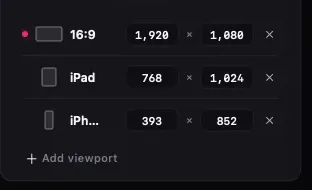
The canvas mirrors the main viewport. Any viewport in the list can be promoted to main from the list.
Tidy page
The Tidy toggle blocks ads and hides cookie banners, consent pop-ups, and chat widgets, then reloads the page. Toggle it off to capture the page exactly as served.

Before the shot
A fold under Tidy, for pages that fight capture. Folded, it shows which settings are on.
- Freeze animations: CSS animations and transitions jump to their end state and playing videos pause, so every viewport shows the same frame. WebGL and canvas loops keep running.
- Settle delay: 0, 1, 2, or 5 seconds of extra wait before the first shot, for lazy images, web fonts, and fade-in heroes. It runs once per capture or recording, not once per viewport, and once per page in a list.
- Custom CSS: CSS added to the page when you click Apply, at every load, and again before every capture. Hide a nav, remove a bar, change a color; the canvas shows the result.
A list of pages
The list button next to Reload, or File > Capture a List of Pages… (⌘⇧B), opens a sheet for URLs, one per line. The current viewports and capture settings run across every page, stills only. Each page lands as its own Library group, named from its host and path, and counts as one trial action.
- A line with no scheme gets https, or http for localhost, private network addresses, and .local hosts. Blank lines and lines starting with # are skipped; duplicates count once; the list stops at 500 pages.
- A line ending in .xml is a sitemap. Expand sitemaps replaces it with its page URLs before the run; a sitemap index is followed one level down. Compressed .xml.gz sitemaps usually can't be read: use the site's plain .xml.
- A page that doesn't load within 30 seconds is skipped, and the pages skipped are named when the run ends. Stop after this page, or closing the capture window, ends the run; what landed stays.
The canvas is a browser
Click, scroll, log in, dismiss dialogs: anything a browser can do, you can do in the canvas before capturing. Pages behind a login: sign in on the page, then capture. Pages behind a server-level password wall get a sign-in sheet. A link that would open a new window or tab loads in the canvas instead.
While a capture or a list runs, Go, Reload, Recents, and Tidy wait for it to finish, so a new page never lands in the shot. A hands-on recording keeps them, since browsing is the point of it.
Image options
- Area: Viewport captures exactly the viewport rectangle. Full page captures the entire scroll height at the viewport's width, up to 16,384 px tall in output pixels (8,192 CSS px at 2x). A taller page is cut there, and the capture's toast says Cut at 16,384 px.
- Scale: 1x exports at exact pixels. 2x renders at double resolution for Retina-sharp exports.
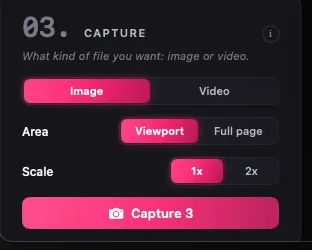
Every capture lands in the Library the moment it finishes. Close the capture window and you're already looking at the results.