Help / 07
Troubleshooting
When a site fights back
A site won't capture properly
The escalation ladder, in order:
- Use the canvas like a browser. It is one. Log in, click through consent walls and bot checks, dismiss overlays, and use Tidy for banner clutter — then capture.
- Open Before the shot. Freeze animations for a page that never holds still, a settle delay for one that keeps loading after it says it's done, custom CSS to hide what Tidy misses. See Capture.
- For recording, switch to Hands-on and drive the page yourself. Sites that misbehave under automation usually behave for a human.
- All else fails: Import. Screenshot the site by any means and ⌘I it in. Everything downstream, Compose and export, works identically on imports.
Pages skipped in a list
A page in a list that doesn't finish loading within 30 seconds, fails to load, or lands on a blank page is skipped, and the run names the skipped pages when it ends. Open one on its own to see why. A compressed .xml.gz sitemap usually can't be read; the sheet says so, and the site's plain .xml works.
The page stopped responding
A very tall full page or a very large viewport can crash the page's web process. Plures notices, reloads the page once, and says so; a take in progress stops there and what it caught lands in the Library. A page that crashes again stays down: try a smaller viewport or another page.
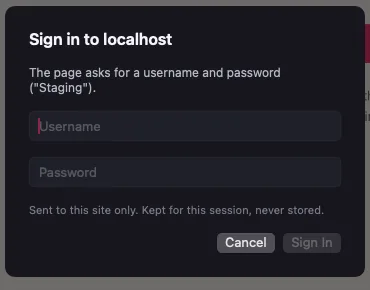
Password-protected staging sites
Sites behind a server-level password wall (HTTP basic auth, the usual staging protection) show a sign-in sheet when the page loads. Credentials go to that site only and last for the session, so a multi-viewport run signs in once. Regular on-page login forms need nothing special — sign in on the page like any browser.
Video frame rates
30fps at typical sizes — 1080p records with plenty of headroom. At very large viewports (4K and up) WebKit's snapshot path becomes the bottleneck and recordings land around 25–27fps. Every frame is timestamped against the wall clock, so duration and pacing stay exactly right; you just get fewer frames per second at those sizes.
Animated pages look choppy on the canvas
Plures renders pages with WebKit, the engine behind Safari. Some WebGL and canvas animations that Chrome runs on the GPU take a CPU path in WebKit, and at large viewports the loop can drop to 10 to 15fps in the canvas. Stills are unaffected. Recordings inherit the page's frame rate, since Plures captures what the page draws. To check whether it is the page or the app, open the site in Safari at the same width. A smaller viewport helps: 1280×720 often runs a scene smoothly that stutters at 1080p. Freeze animations (Before the shot) stops CSS animations and video, not WebGL loops.
Requirements
macOS 14 Sonoma or later, on Apple Silicon. Intel Macs run the same universal build; it is not tested there. No Windows or Linux version — Plures is built on WKWebView and the system capture pipelines, and porting would mean a worse product everywhere. ShareX for stills and OBS for video are the good options over there.
Updates
Plures checks for updates with Sparkle and installs them in-app (Plures menu > Check for Updates). Installing them is optional.
Report a problem
Help > Report a Problem gathers the app version, macOS version, and any Plures crash logs into a pre-filled email draft. Everything the email will contain is visible before you send it.

Still stuck? support@plures.app.