Help / 05
Compose
One canvas, three kinds of object
Compose is the one editor for everything in the Library. A capture, recording, or import opens at its own pixel size in a dark browser frame on the Sand gradient, already selected, ready to export. A saved composition reopens as it was saved. The canvas holds three kinds of object: the picture (a capture, recording, or import), a device it can sit on, and text.

Frame, then Device
Two choices in sequence, one after the other in the inspector.
- Frame is what surrounds the picture: None, Browser · Dark, Browser · Light, Phone, Tablet. Every frame is listed with a fit dot; a phone or tablet frame the capture's aspect cannot fill is greyed with the viewport that would, and a Set viewport button that opens the capture window at that size.
- Device puts the framed picture on the glass of a 3D phone, tablet, laptop, or monitor, or None. Each device shows how well the capture fits; a poor fit is greyed with the viewport to capture at. The frame applies inside the device's screen too.

The inspector
Top to bottom. Preset, Canvas, Background, and Layers are always there; the rest belongs to the selected object. With a device on the canvas, Camera, Motion, and Screen appear and Size moves onto the camera. Every section heading has a tooltip saying what it holds.
- Preset: one row. Save look… saves the current look; Apply… opens the looks, None first, then the seven built-ins, then yours. Applying one keeps the picture. See Presets and batch.
- Canvas: Source size keeps the capture's exact pixels inside its frame. The named canvases are fixed sizes: Wide 16:9 (3200×1800), Standard 8:5 (3200×2000), Portrait 4:5 (2048×2560), Square 1:1 (2400×2400), Story 9:16 (1800×3200), Open Graph 1.91:1 (2400×1260). Source size is flat only; a device on it renders on Wide.
- Background: None (the export keeps its alpha), Solid, Gradient (Linear with a direction, Radial, or Mesh with four corner colors and Shuffle), Studio (the dark stage gradient).
- Frame and Device: above. With a device, a Size slider under it sets how close the camera sits. Scrolling on the canvas does the same, and so does dragging a corner of the device's selection box.
- Size (no device): the picture's size relative to its fit inside the padding, and a Position grid that puts it on a margin or the center in one click.
- Look (no device): Padding, Rounded corners (with None or a browser frame), Shadow. With a device: Style, one of Photo, Clay, or Line; Photo adds a Finish (Silver or Graphite) on everything but the laptop, Clay a Body color, Line an Ink and Body color with a swap; then Lighting (Studio, Soft, Dramatic, Night), Brightness, Shadow, Light pos (where the shadow falls in the picture: left of the device at one end, right at the other, whatever the camera angle or Lighting preset; an Orbit or Push keeps the light the device's pose sets, so the camera moves around a lit device), Reflection (0 is a dry floor), Glare, and Float (the floor, with its shadow and reflection, drops away beneath the device; the framing stays). Line is drawn without light or floor, so those controls leave with it.
- Camera (device): four poses, ¾, Front, Low, Iso. Click a pose again, or ⇄, to flip to the other side. Re-fit frames the device in the canvas. Lens is Perspective or Orthographic; Line style starts orthographic, Photo and Clay start perspective, and the lens stays as you set it until the next Style change.
- Motion (device): Still, Orbit, Push, or Custom. Custom pins two poses, Set Start and Set End, from the framing on the artboard. A move is 6 seconds and makes the export a video; the footer transport plays it.
- Screen (device): for a still well taller than the glass, a full page capture, a Page slider picks which part shows. Scroll makes the export a video that pans from the top of the page to the bottom: over the camera move, or with Motion on Still over 6 seconds with the camera held. The footer transport plays the pan, and the poster shows the Page you set. The browser bar stays put while the page moves under it. A picture that fits the glass, or a viewport with a browser bar on it, has no Screen section.
- Video (a recording, on the canvas or on the glass): Play or Freeze. Play uses the clip: the trim readout (drag the handles under the artboard) and Speed from 0.25x to 2x; the preview loops, and this trims the clip in this composition only, Trim in the Library cuts the recording itself. Freeze uses one frame of the clip, picked with the Moment slider, and the composition becomes a still; Trim and Speed leave with it. Compose exports video without sound.
What goes in, what comes out
| Still | Movie | |
| Capture | PNG, as it is | With a camera move: 6 seconds |
| Full page | PNG; on a glass, Page picks the part that shows | With a camera move, or Scroll panning the page: 6 seconds |
| Recording | Freeze: one frame of the clip | Play: the trimmed clip at its speed, or the camera move if longer. Frozen with a camera move: 6 seconds over that frame |
Layers and text
The Layers section of the inspector lists the objects, top of the stack first. A device row names what is on its glass. Drag a row up or down to reorder; a text row has its own delete. + Text in the section's heading adds a text object on top.
- Edit: double-click text on the canvas, or press Enter with it selected. Esc or a click anywhere else commits. Only your own line breaks make new lines; text wider than the canvas clips at the edge.
- Move and scale: drag to move; it snaps to the canvas center lines and the padding margin. Drag a corner handle to scale about the opposite corner. The same handles scale the picture when no device holds it.
- Typography, Fill, Effects, Position: with text selected, the inspector shows the font (each name in its own face, arrow keys preview), weight, size in canvas pixels, alignment, line height, and letter spacing; a fill color with hex and opacity; a drop shadow with X, Y, Blur, and color; and the Position grid. Sizes are fractions of the canvas, so a look holds when you switch canvases.
- Behind a device: a text object below the device in the stack draws behind it. Clear pixels of the device pass clicks through, so text behind it stays selectable.
The artboard
Click selects, drag moves, Tab cycles objects. A selected device is outlined around the device itself, not around the whole canvas. Drag its body to move it. Drag a corner handle to size it, which is the same value the Size slider sets. Drag the round grip at the middle of the box to orbit the camera, or hold ⌥ and drag anywhere on the device. Scroll zooms, and arrow keys move it by a pixel.
Keyboard
| Arrows | Nudge the selected text or picture 1 px; on a device, move the device |
|---|---|
| ⇧ Arrows | Nudge 10 px |
| Tab · ⇧Tab | Select the next or previous object |
| Enter | Edit the selected text |
| Delete | Remove the selected text object. The picture and the device are never removed this way |
| ⌘D | Duplicate the selected text object |
| ⌘] · ⌘[ | Move the selected object up or down the stack |
| Space | Play or pause a video composition |
| Esc | End a text edit, then deselect, then leave. Leaving with unsaved changes asks first |
Save and export
The footer carries the three ways out, and a transport whenever the output is a video.
- Save as New adds the composition to the Library as its own item, with its own copy of the picture; the source stays untouched. The editor stays open on the new item. Counts as one trial action.
- Save saves the changes to the composition in place. It appears once the composition is in the Library, and is enabled once it has changes. Never counts as a trial action; after the trial, it asks for a license like Save as New and Export.
- Export… writes a file. Stills: PNG, or PNG 2x on a named canvas. Video: MP4, or MOV with alpha when the background is None; GIF; or the poster frame as PNG. The badge next to Export names the output before you click (PNG · alpha, MP4 · 0:06, MOV · alpha · 0:06). Export lands the composition in the Library too unless an unchanged one is already there. Counts as one trial action.
Save is immediate for a video composition too: it lands the recipe and a poster (the still at the stored pose and Page), and the video itself is rendered the first time something needs it, which is Export here, or Export or drag-out from the Library. Once rendered it is kept. Saving over it with changes puts the video back to pending.
A video render shows a progress bar and Cancel in the footer. Errors land in the footer too, left of the buttons, never as a dialog. The header's menu has Copy recipe (the composition as JSON, for a bug report) and Revert to saved.
Presets and batch
A preset is a composition with the picture left out: canvas, background, frame, device, look, camera, and text. Applying one keeps your picture; a device preset puts it on the device that fits its shape and width, and the camera refits to that device. Seven ship with the app:
- Design review: the capture at Source size in a light browser frame, no background, no padding.
- Client update: a dark browser frame on a dark Wide 16:9 card.
- Story: a phone, straight on, on a Story 9:16 gradient.
- Open Graph: the window on the right of the Open Graph canvas over paper, a headline on the left.
- Slide: a title across the top of Wide 16:9, the window below it.
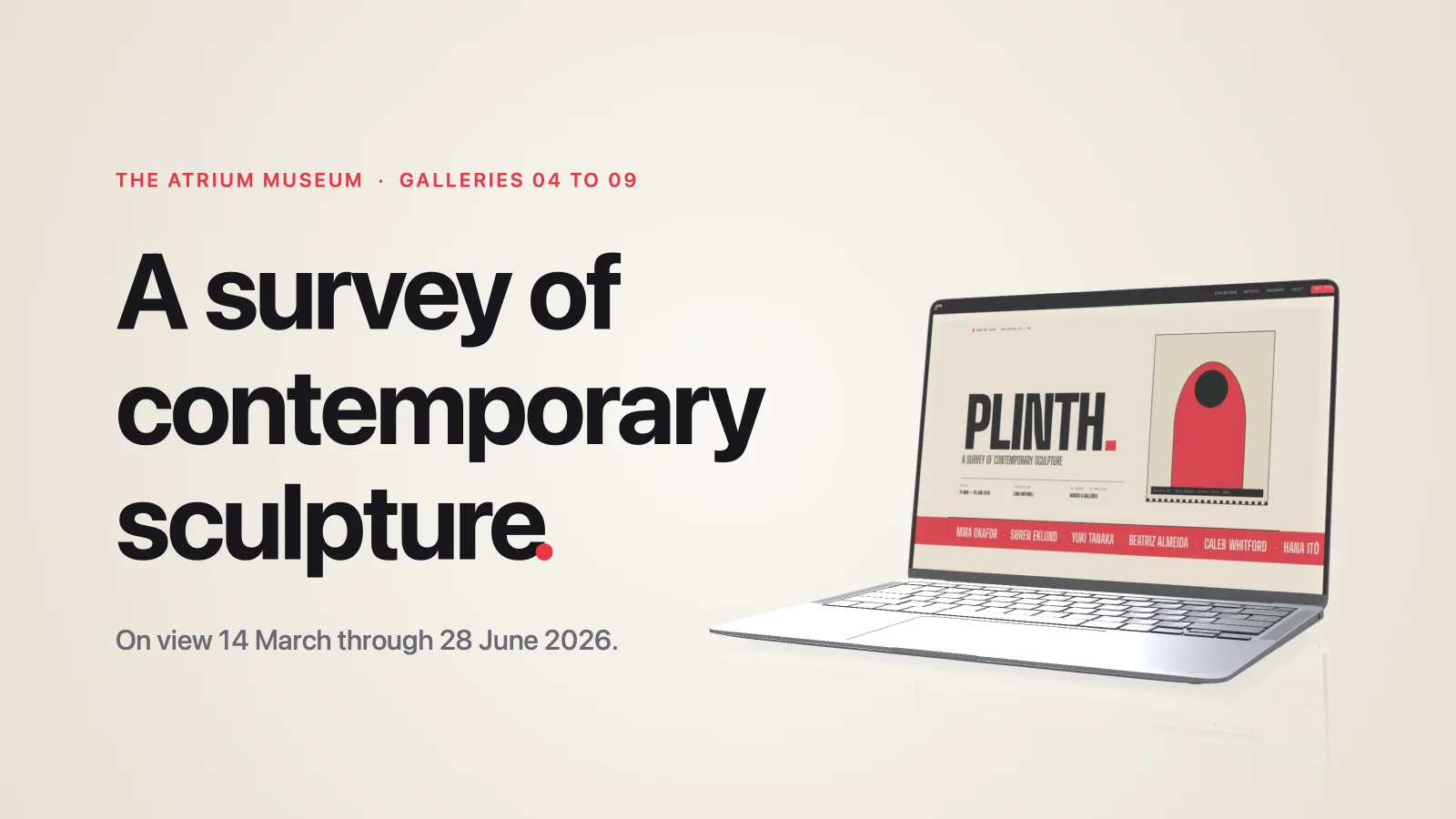
- Case study: a laptop on the right of the Studio stage on Standard 8:5, a headline on the left.
- Orbit phone: a phone orbiting over no background, a headline behind it; exports as MOV with alpha.
Save look… in the Preset row saves the composition as a preset under a name; the picture is not part of it. Your presets follow the built-ins in the Apply… popover. Right-click one of yours to rename it, update it with the current look, or delete it; right-click a built-in to hide it, and Show hidden brings them all back. A hidden preset leaves the Library's Apply preset menu too. Compositions made with a preset are not affected by any of this.
Apply preset
Select captures, recordings, or imports in the Library and choose Apply preset from the context toolbar or the right-click menu. Each item becomes one composition with that look, rendered without opening the editor, straight to the Library. A look with a camera move lands each item with its poster; the video renders when it is exported or dragged out, like a saved composition. The toolbar reads Applying 3 of 8 with Cancel beside it; Cancel stops after the item in progress and keeps what has landed. An item that fails is skipped and the run continues. One run counts as one trial action.

Source missing
A composition whose picture file is gone opens with a hatched placeholder where the picture was and reads Source missing. The layout, frame, and look are kept; Save as New, Save, and Export wait until Replace… puts a picture back.
With Background set to None, stills export as PNG with alpha and camera moves as HEVC in a .mov. They drop into Figma, Keynote, or After Effects as they are. Plures makes the asset; your design tool makes the poster.