Help / 04
Library & sessions
Where everything lands
The Library is the app's home screen. Captures land there the moment they finish, newest first, grouped by capture run. Folders in the sidebar organize items; the grid sorts by date, type, or aspect.

Select to act
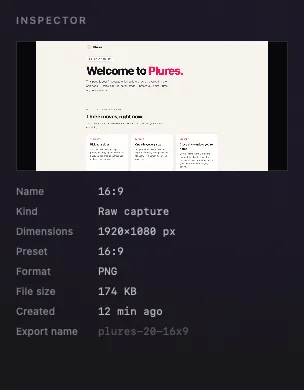
Selecting an item surfaces a context toolbar with its verbs: Compose for a capture or import, Trim and Compose for a recording, Edit for a composition, then Export and Delete. Selecting several shows the count, Apply preset, Export, and Delete. The inspector shows the selected item's dimensions, format, file size, and export name. Space Quick Looks anything; every item drags out to Finder, Figma, Slack, or anywhere else that takes a file.
A video composition is saved with its poster; the video itself renders the first time it is exported or dragged out, then stays. The inspector says so under the dimensions, the toolbar shows the render with Cancel while it runs, and a drag lands once the render is done. Quick Look on one shows the poster.

Imports
Bring your own images or videos in with ⌘I or the Import button: a Figma export, a phone screenshot, a screen recording. Imports open in the same editors as captures: Compose, and Trim for a video.
Sessions are files
- Save Session (⌘S) writes the whole workspace — items, folders, arrangement — to a .plures file anywhere on disk. Double-click it in Finder to reopen.
- Open Session (⌘O) replaces the current workspace with the file's.
- Each fresh launch starts clean by design. File > Restore Previous Session brings back everything from the last time Plures was open — available exactly once per launch.
- Quitting asks first when anything would be lost: Library items not saved as a session, or changed since the last save (Save Session…, Cancel, or Quit Without Saving); a Compose edit not saved; a recording or a list of pages still running, which stops and lands what it has before the app quits.
- Plures runs one copy at a time, so a second copy of the app never opens over the same workspace.
Compose
Compose is the one editor for a capture, a recording, an import, or a saved composition: frames, backgrounds, text, a 3D device with camera moves, presets, and batch apply. It has its own page: Compose.
A composition saved from Compose is a Library item of its own, with its own copy of the picture; the source stays untouched. Edit reopens it as it was saved. Apply preset on a selection of captures, recordings, or imports makes one composition per item without opening the editor.
Everything in the Library is a real file you can drag out at any time — including during an expired trial, which leaves the Library read-only but never locked.