Help / 03
Recording & auto-scroll
Scroll videos at exact pixels
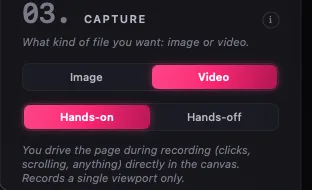
Switch the capture type to Video and pick a style:
Hands-off
Plures drives. Auto-scroll glides the full page top to bottom over the clip at the speed you set (pixels per second), or record a static duration with the page held. Options:
- Auto-scroll the page — on for the classic top-to- bottom scroll video, off for a fixed-frame recording.
- Stop recording at page bottom — the take ends itself when the scroll completes.
- Preview the run — run the scroll at the chosen speed without recording to check pacing first.
- Hold — hold the page still mid-take while the video keeps recording.
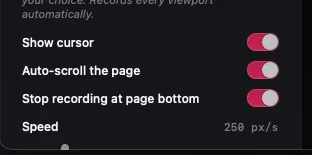

Auto-scroll drives the window's scroll. A page that scrolls inside an element instead, like some app shells and slide decks, is refused with that reason before the take starts; record it Hands-on.
Hands-on
You drive the page during recording — clicks, scrolling, menus, anything — directly in the canvas. Records a single viewport. Show cursor is optional. Start and stop with the record control under the canvas or ⌘⇧R.
Multi-viewport recording
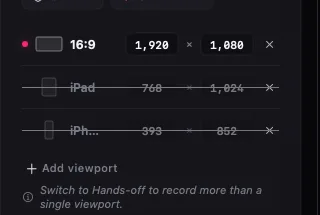
With more than one viewport, record the primary take; the secondary viewports auto-record afterward, replaying your take at each size. Closing the capture window mid-recording stops and keeps the take — it finalizes and lands in the Library like any deliberately stopped recording.
Trims and retimes
Recordings open in an editor with a trim timeline. A trimmed or retimed cut saves to the Library as a new item, or replaces the original: your choice. The source stays untouched when you save as new. An imported clip with sound keeps it through a trim and a speed change, and a phone clip keeps its rotation. To put a recording in a browser frame on a background with a headline, use Compose instead (see Compose); Compose exports video without sound.
Limits
- Video records up to 4096 px a side. A larger viewport in the take is named and the recording does not start.
- If the page stops responding mid-take, the recording stops there and what it caught lands in the Library. The page reloads once; a page that crashes again stays down with a message.
- One capture at a time: Record waits while a screenshot run or a list of pages is going, and the other way around.
Recordings are H.264 MP4 at 30fps with wall-clock frame timestamps, so duration and pacing stay exact even when a very large viewport lowers the achieved frame rate (see frame rates).